Adding text
Home / Forums / Help / Fix a problem / Adding text
- This topic has 37 replies, 1 voice, and was last updated 4 years, 8 months ago by
Keith Gypps.
-
AuthorPosts
-
-
BreannaMarch 7, 2018 at 3:06 am #11477
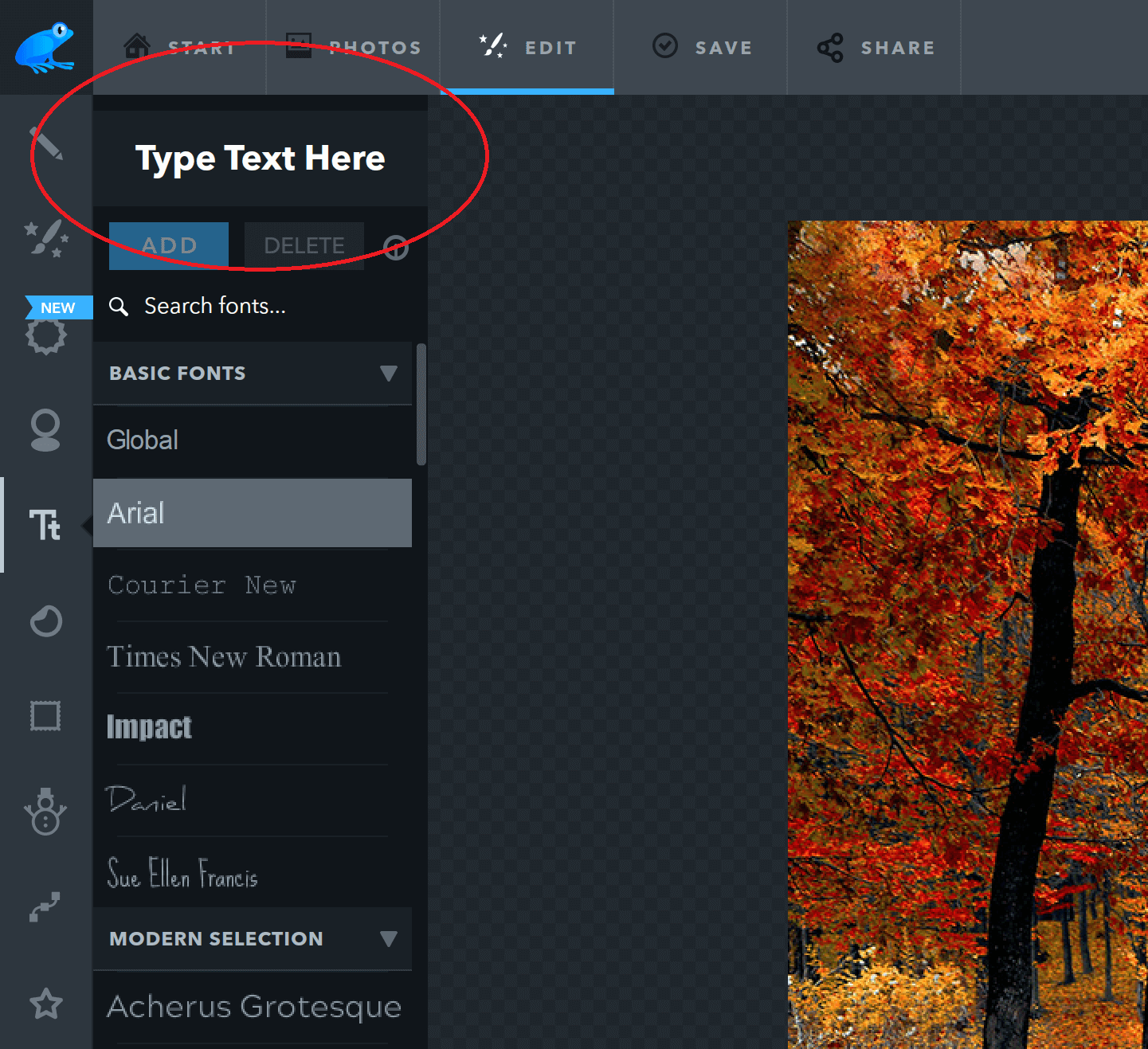
When adding text to a photo my text does not show in the “type text here” field therefore I am unable to add any text at all. This is not an issue with my computer as I am able to use my keyboard and have visible text in all other sites and applications. I am also able to type in this forum and type in my login information. How do I fix this so that I am able to add text to the photo I am editing?
-
-
Thanks for getting back to us. That’s really strange.
Is it correct that you’re using Chrome on Windows 10? Also do any of the following work:
– Typing into other fields, such as the File Name field when saving or the Dimensions fields when resizing or creating a Blank Canvas?
– Another web browser?
– Exiting Chrome completely and relaunching it?Based on your answers we’ll investigate further and try to resolve it ASAP. Right now it’s working fine from here on Windows 10 Chrome.
Regards – The Ribbet Team
-
-
Hi Denita,
Thanks for reaching out to us! After you add Text to your photo (or when you click on a piece of existing Text), a Text Properties dialog appears. At the top of this dialog is a color selection rectangle where you can choose the Text’s color.
Let us know if you have any other questions!
Regards – The Ribbet Team
-
-
Mary SchillerApril 4, 2019 at 2:48 am #19052
This happens from time to time and it drives me nuts! — the letters won’t all fit in the text box for some reason. If I try to make it smaller text, it stays the same, only smaller. If I try to stretch the text box, it just makes the whole thing bigger and the letters on the ends still don’t show. SO aggravating!
-
That’s a pleasure! One other thing: It could also be the version of the font you install. I downloaded FELIX TILTING from here and it worked fine for me across a number of different letter combinations. It’s possible though that there are some specific combinations of words that would cause the issue on this version of the font as well.
Regards – The Ribbet Team
-
-
Hi Ian,
Thanks for reaching out to us! In the current desktop/web version of Ribbet, this isn’t possible, however it is currently possible on our mobile app (2nd item on the Text toolbar that shows after you add some text).
In our new version of Ribbet for web, which we’re working on, this option is included. If you’re interested in becoming a beta tester of this, you can sign up to become an early, beta tester here.
One thing some Ribbet for web users currently do is add a rectangle sticker behind their text (from the Stickers > Geometric group). This can be faded to create quite a nice effect.
Or, let us know if you have any questions.
Regards – The Ribbet Team
-
-
-
-
Hi Shadow,
You can find them on the PHOTOS tab (top bar) > History tab (left bar).
If you need any help specific to your account, you can also reach out to us at https://ribbet.com/contactus.
Thanks!
– The Ribbet Team
-
-
-
Hi Lesley,
Thanks for your message! Yes, in the program version you can achieve this by rotating the text to around 90 degrees (by dragging the circle to the above center of the text) and then right-mouse-clicking the text and choosing “Straighten”.
Let us know if you have any further questions!
– Ben
-
-
NateJuly 26, 2021 at 5:51 am #23680
The picture you showed is not what the program looks like to me. There’s simply an “add text” button and when you click on it, the text box appears below the canvas, and there’s no way to move it back up.
I have to say as someone who has used Ribbet for years now (and a premium buyer), the original version was vastly better than this new version. The online and app versions are so different from each other; some features missing on one but working in the other, and vice versa. Is there anyway to download the older version and use that? I’ve found myself having to use other programs to fit my needs, because Ribbet no longer works as well as it once did.
-
Hi Nate,
Thanks for reaching out to us!
The above screenshot is from our program version for Windows and Mac, which is identical to our previous (Flash) format and has all the same functionality. You can download it from ribbet.com/download and once installed it will add a Ribbet icon to your Windows desktop / Mac icon dock. You can launch Ribbet from this (no need to return to our website).
With the textbox appearing below the canvas in our new online editor, this isn’t an issue we’ve seen before. Would you mind please emailing us a screenshot of this to support [at] ribbet.com? We’d love to investigate further.
Best regards,
– Ben -
-
-
Hi Jo,
We are investigating this issue. In the meantime you can either:
– Copy and Paste the text from another program into Ribbet
– Or, use our web version at app.ribbet.com to add textLet us know if we can help further.
– Ben
-
-
-
Hi Jo,
We have found a solution. Could you please try this:
1. Click the Apple logo in the top left hand corner and go to System Preferences…
2. Go to Keyboard
3. Click the Shortcuts tab and go to App Shortcuts
4. Click the ‘+’ sign and put Ribbet as the application
5. Under Menu Title, input ‘Emoji & Symbols’
6. For Keyboard Shortcut, press Option + Command + E
7. Click AddDoes that resolve it for you?
Best regards,
– Ben
-
-
Terri RappNovember 24, 2021 at 5:44 am #23764
I have been having problems adding text similar to Jo. I tired the workaround you suggested and it has enabled me to add some text now without emojis, but when I try to type a smaller case d it freezes and a message pops up on my computer asking if I want to use dictation. I have dictation disabled but this message still pops up when trying to type a smaller case d. Any ideas on this? I wouldn’t rather use premium Ribbet account versus the web app as my premium account has more functionality. Thank you!
-
MacDecember 13, 2021 at 1:04 am #23790
Hi – hope someone can help plse?
I’m using the free version of Ribbet which I downloaded some time ago. Up to recently this has worked fine but now for some reason when trying to add text it wont allow me to type a letter ‘e’ and I get a menu appear asking me if I want to start dictation!
How can I fix this plse?
Rgds,
Mac-
Hi Mac,
Thanks for reaching out to us!
We are aware of this issue and will be releasing an update which fixes it in the coming days.
In the meantime you can work around the issue by copy/pasting the text you need into Ribbet.
Please let us know if you have any questions.
– Ben
-
-
Keith GyppsDecember 21, 2021 at 10:48 pm #23798
Hi,
I am trying to add text to a picture which is easy enough but i cant then scale it to make it fit the picture, ideally i want the text box deeper so that it contains all my text at a decent size?
Probably something i am doing wrong but I’m happy to learn what? -
KeithDecember 22, 2021 at 11:14 pm #23801
Thanks for the reply, i believe it does do as you say but then becomes too big for ther picture.
Im sure the list time i tried it, it scaled the text and dropped it onto different lines to make a paragraph, that’s what im trying to do rather than have to add line by line.-
Unfortunately currently you have to manually add those line breaks in, by hitting Enter within your text. So I’d suggest firstly sizing it to approximately the right size, and then adding in those breaks.
Let us know if you have any further questions.
– Ben
-
-
-
AuthorPosts